Guest Types & Segments
The Guest Type & Segments tab allows users to create new guest types. As a guest service agent is booking a reservation, they are prompted to add source information that includes the source of business, guest type, and market segment. This source information can also be associated to a guest profile and it becomes the default when booking future reservations for the guest.
Guest types are the type of booking that the guest is making. For example, user can indicate that a guest is part of a Corporate reservation. Or maybe they walked in and reserved a room, which can be tracked as a Transient guest type.
Properties can choose if the Guest Type & Segments is required to create Profile, Group, and Reservation.
Perform the following steps to set the Guest Type & Segments as mandatory fields:
Navigate to Settings ➜ All Settings ➜ Market segments & sources (under Reservations).
Click the Guest Type & Segments tab.
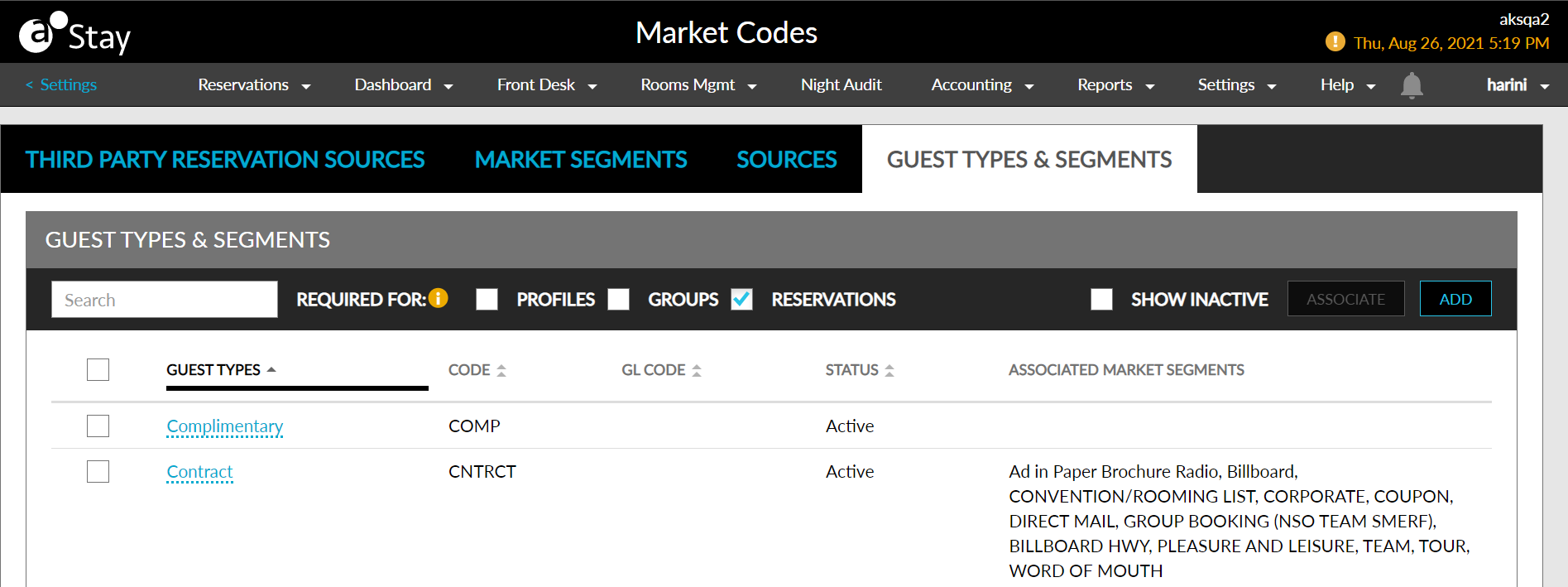
Select the checkboxes for which the sources should be set as required.
Click Save.
Users can enter a name of the guest types or a code in the search box to search for existing guest types.
Enable the Show Inactive checkbox to display the inactive guest types.
Users can create new guest types by clicking the Add button.
Perform the following steps to create a new guest type:
Navigate to Settings ➜ All Settings ➜ Market segments & sources (under Reservations).
Click the Guest Types & Segments tab. User must first add market segments before setting up Guest Types & Segments.
Click Add. An entry field appears.
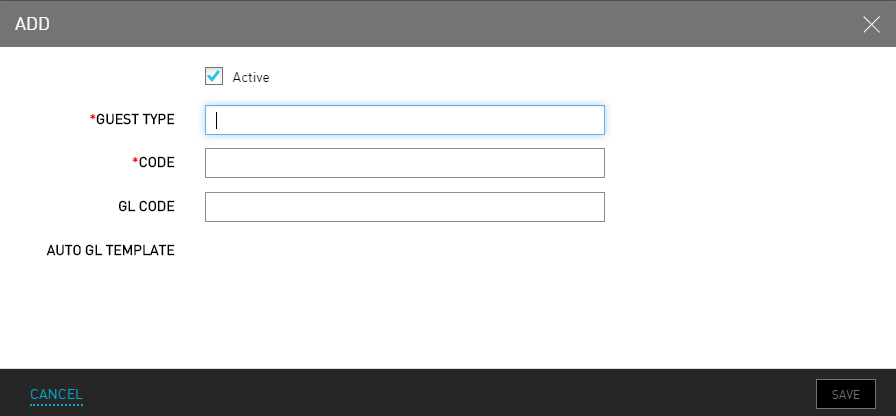
Refer the following table and fill in the fields to add a guest type:
|
Field |
Description |
|---|---|
|
Active |
Enable the checkbox to activate the guest type. |
|
Guest Type |
The name of the guest type. |
|
Code |
A unique code to recognize the guest type. |
|
GL Code |
A unique general ledger code to recognize the guest type. |
Click Save. The guest type is now added.
To associate market segments to a guest type, select the Guest Type checkbox.
Click Associate. The Associate Market Segments grid opens.
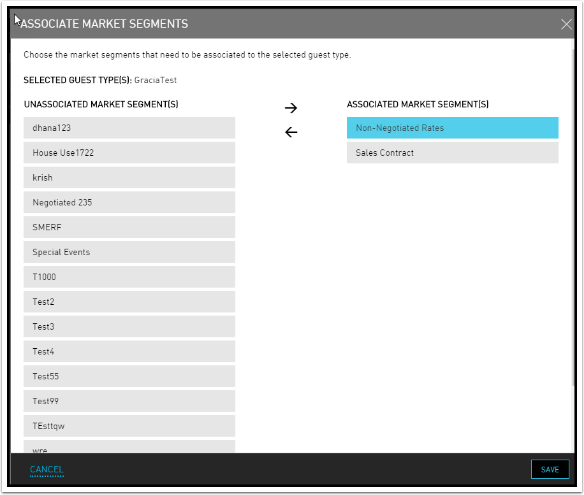
Choose the market segments that needs to be associated to the selected guest type.
Click Save.
Click Save on the Guest Types & Segments page again for changes to be applied.
If the user needs to edit an existing entry, click the name and it becomes editable. If the user wants to set an entry to the inactive state, click the name and then deselect the Active checkbox.